Install as an app
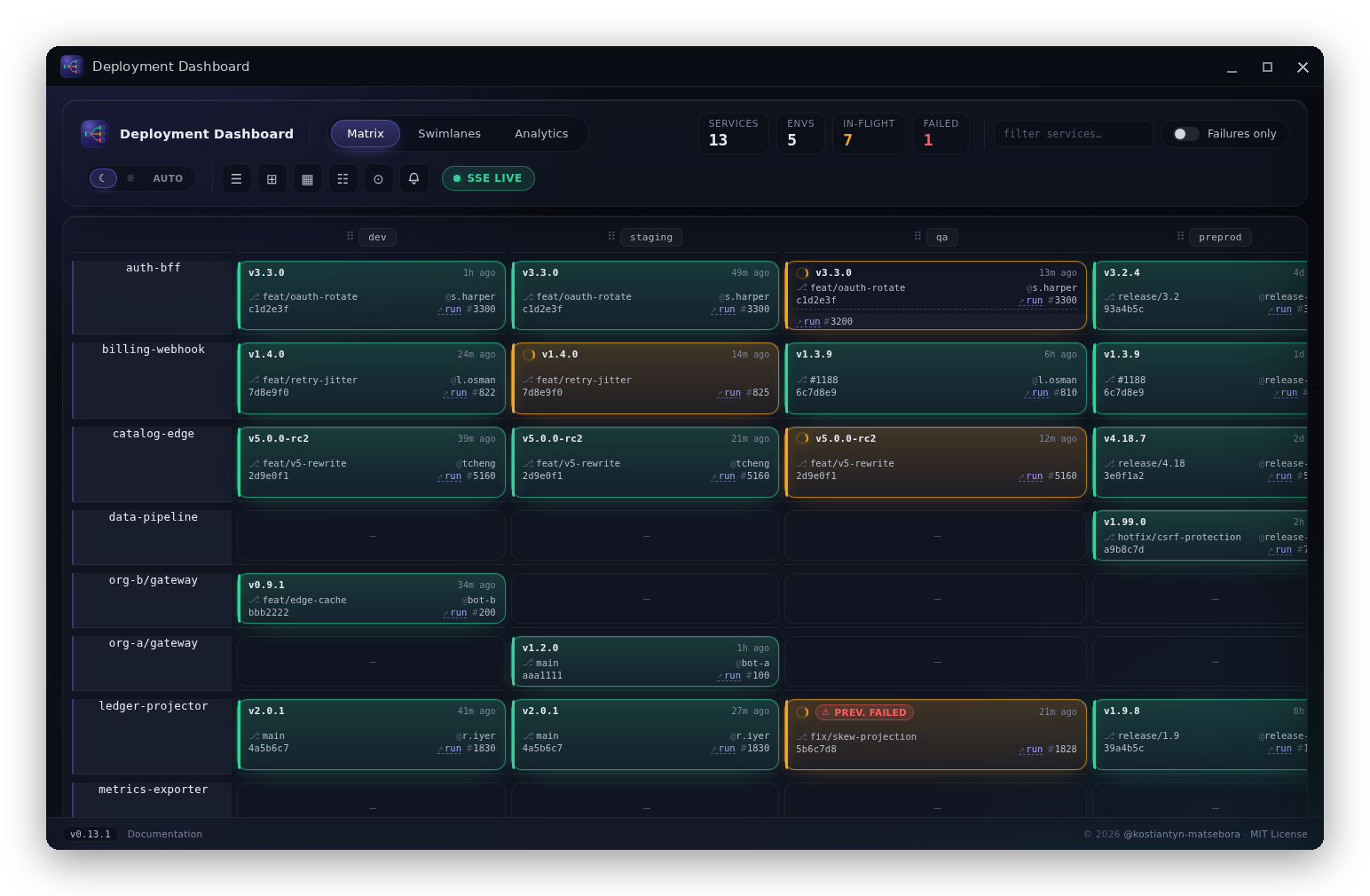
Deployment Dashboard ships a Web App Manifest so Chromium-based browsers can install it as a standalone application — a dedicated window, a taskbar or dock icon, and no browser chrome in the way.
What you get
- Standalone window. The dashboard opens in its own window without the address bar, tabs, or toolbar of the host browser.
- Taskbar / dock icon. Pin it alongside your other tools; Alt-Tab or Cmd-Tab switches to it like any native app.
- Stays behind your gateway. The installed app hits the same URL you configured — it is not a separate deployment and respects the same network boundary.
- Dark-first. The manifest sets
display: standaloneand the dashboard's dark canvas as the splash/theme color, so the standalone window matches the app's default dark theme.
Install in Chrome or Edge
- Open the dashboard URL in Chrome or Edge (Chromium-based browsers only).
- Look for the install icon in the browser's omnibox (address bar) — a
+or a screen-with-arrow icon on the right side. - Click Install (Chrome) or Install app (Edge) in the prompt that appears.
- The dashboard opens immediately in a standalone window and is added to your taskbar or dock.
No omnibox icon?
The install prompt appears only when the browser has validated the manifest (correct Content-Type: application/manifest+json, 192 × 192 and 512 × 512 icons reachable, same-origin scope). If the icon is missing, check that your gateway is serving the manifest correctly — see the production checklist.
Requirements
| Requirement | Detail |
|---|---|
| Browser | Chrome 73+, Edge 79+, or any Chromium-based browser |
| Protocol | HTTPS (or localhost for local dev) |
| Manifest served | GET /manifest.webmanifest → Content-Type: application/manifest+json |
| Icons reachable | All four icon URLs return 200 image/png |
Firefox and Safari do not support the Chromium install flow; the dashboard runs normally in those browsers as a tab.
Uninstall
- Chrome:
chrome://apps/→ right-click the dashboard icon → Remove from Chrome. - Edge:
edge://apps/→ right-click → Uninstall. - Windows / Linux: the installed app may also appear in Start / application launcher — uninstalling from there works too.